
To help fix this issue we’ll be using the Paint program that comes as standard with Microsoft Windows
Open Daz Studio
Locate item with the missing thumbnail in the Smart Content pane
In this example, Mage Apprentice For Genesis 8 Females(s)

Right-click on the item and select More Information

This opens a new window displaying information about the selected item
Here is where problems begin
The connection to the server hosting the information is not reliable and you will typically be faced with a placeholder page as shown below
To overcome the unreliable connection keep refreshing the page by clicking on the item link highlighted
You may need to keep refreshing the page several times (sometimes up to 20 times or more) before the server is contacted

When the page refresh contacts the server then an image of the item will be loaded

Now you have a picture of the missing thumbnail
You will create a new thumbnail image from it as follows
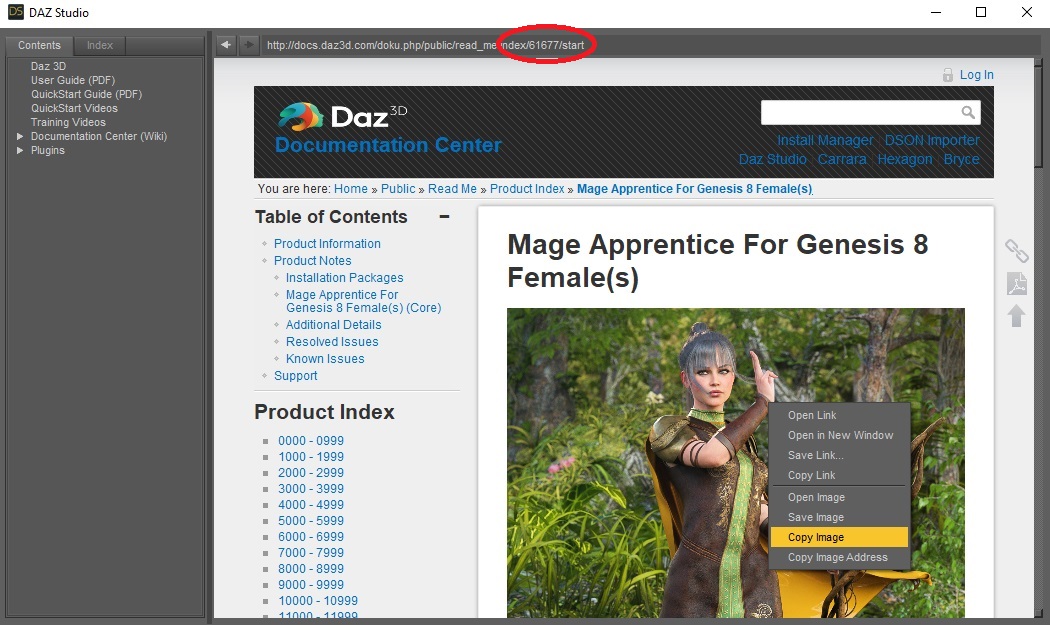
Open Microsoft Paint
Paste the image into Paint, as shown below
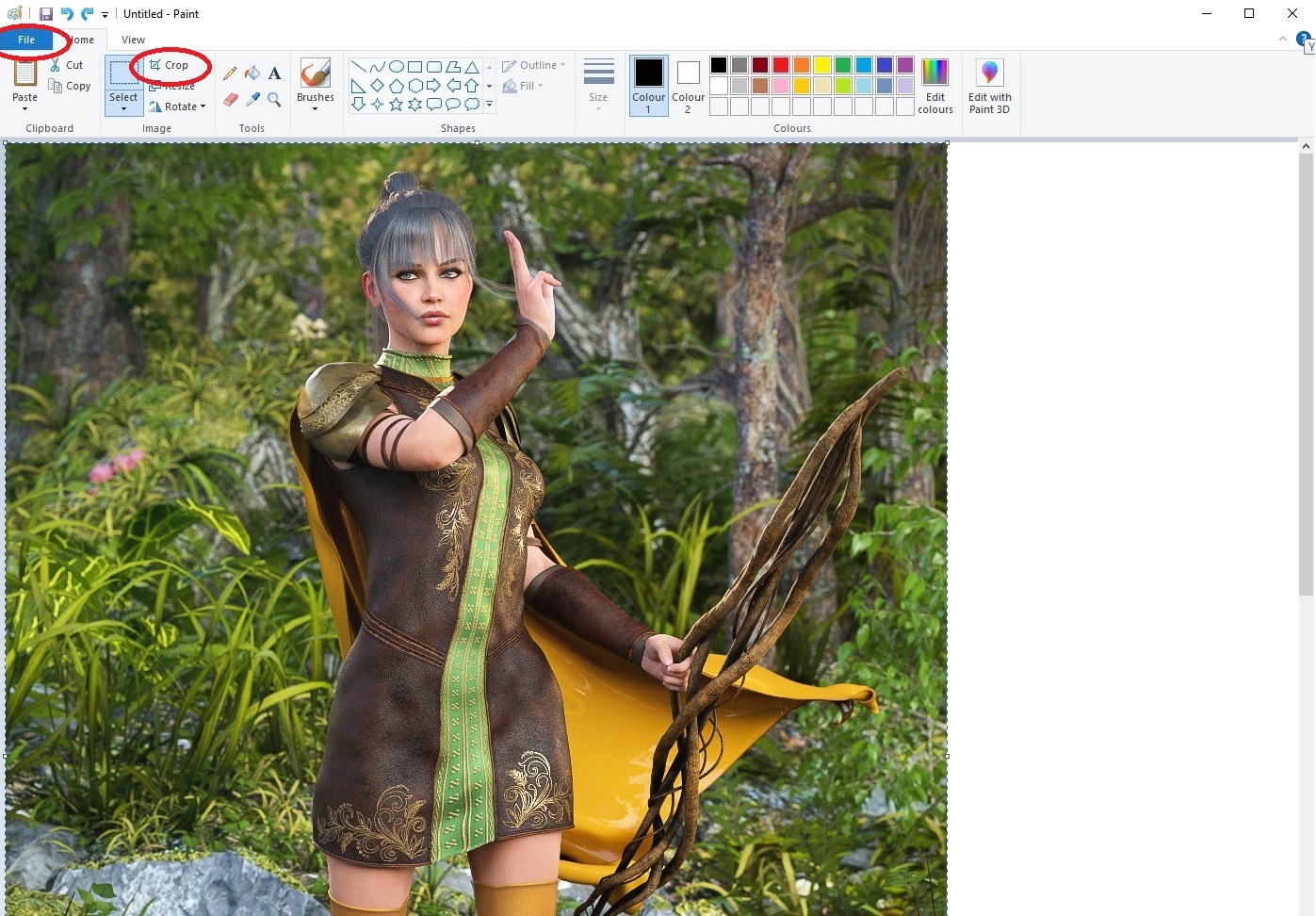
Click Crop, then File:Save As:JPEG Picture
As shown below
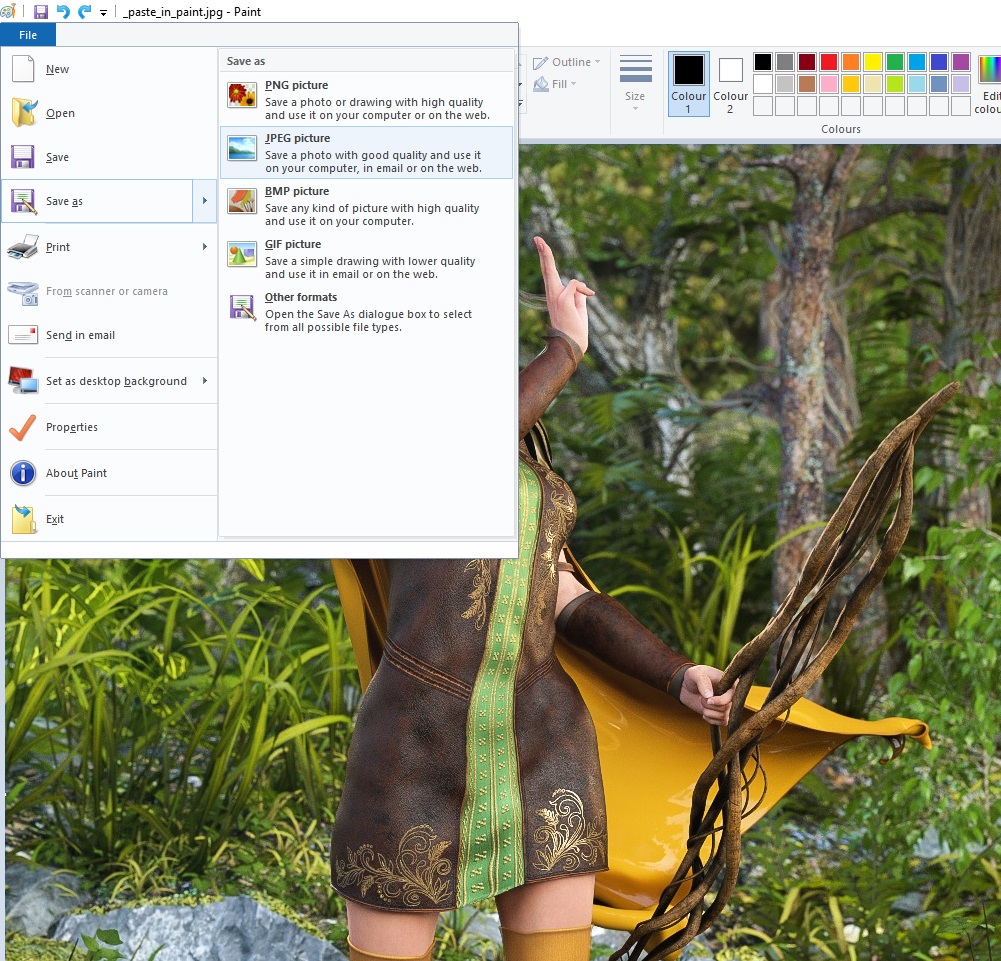
Using the navigation bar at the top of the resulting dialog box, navigate to the directory where all the item image thumbnails are stored: Normally C:\Users\<your_username>\Documents\DAZ 3D\Studio\My Daz Connect Library\data\cloud\meta
Then select the file with the same name as the product code in question

Click save
When asked Confrim Save As, click Yes
Now return to Daz Studio Smart Content pane and Right-click All Products:Refresh

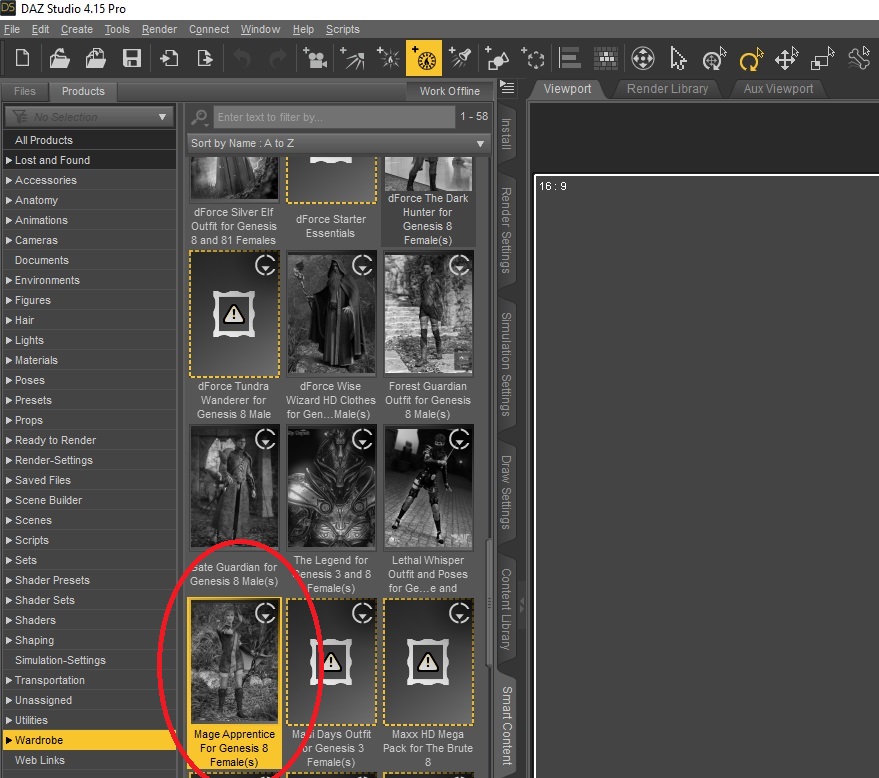
Install the product as normal and the thumbnail will change from monochrome to color
The above procedure also works on an already installed product.